Portal Information
Whether you are new to property ownership, new to strata living, or already familiar with strata communities, our Owner Portal is designed to make managing your property simple and convenient. It gives you 24/7 access to the information we know is important to you — allowing you to pay levies, download statements, and view key financial and meeting documents, including annual budgets, agendas, and minutes.
Every property owner we care for, receives an invitation from PropertyIQ who facilitate the portal. This email invites you to register and set your password, giving you immediate access to the Owner Portal. If you have not yet received your email invitation to log in, please contact your strata manager.
New features are added regularly! We encourage you to check in often and make the Owner Portal your first stop when you need important information specifically relevant to you! Of course, the portal complements — rather than replaces — our personal service. We are always available should you need to contact your Strata Manager directly for assistance.
Setting Up Your Portal Account
Registration
Once SELECT registers you for the Portal, you can expect to receive an email resembling the following:
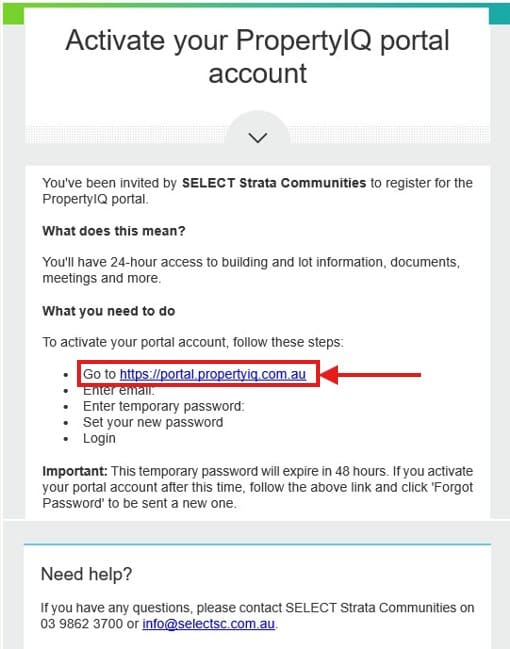
Please note that your Portal account can only be linked to one (1) email address. If you haven't received your activation email and have multiple email addresses registered with SELECT, it may have been sent to an alternative email.
If you haven't received the email within 24-hours, please contact our office for assistance. Be sure to check your junk/spam folders in the first instance.
How to Activate and Access Your Portal Account
Steps:
- Click the web link in the email to proceed to the login page.

This will take you to the below page.
- Enter your email address (as noted on the email received).
- Enter the temporary password provided to you. We recommend copying and pasting if possible, as it is case-sensitive.
- This should now prompt you to set your new password.

- Read & Accept the User Agreement and Privacy Policy.
- Proceed to log in.

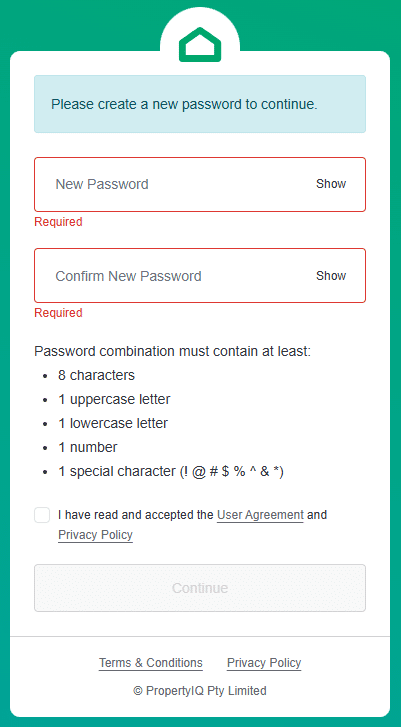
We recommend keeping a record of your password for future use.
Forgot Password
Steps:
Note: If SELECThas sent you a ‘forgot password’ email already, proceed to step 6.
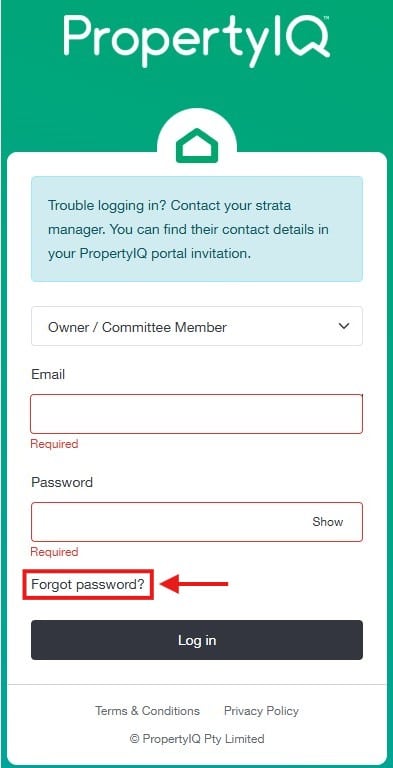
- Go to the PropertyIQ Portal website: https://portal.propertyiq.com.au/login
- Click Forgot password?

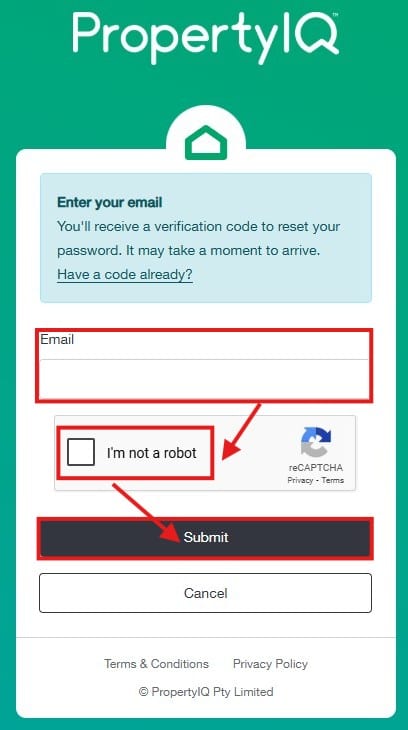
- Enter your registered email address.
- Click the empty box next to “I'm not a robot”.
- Click Submit.

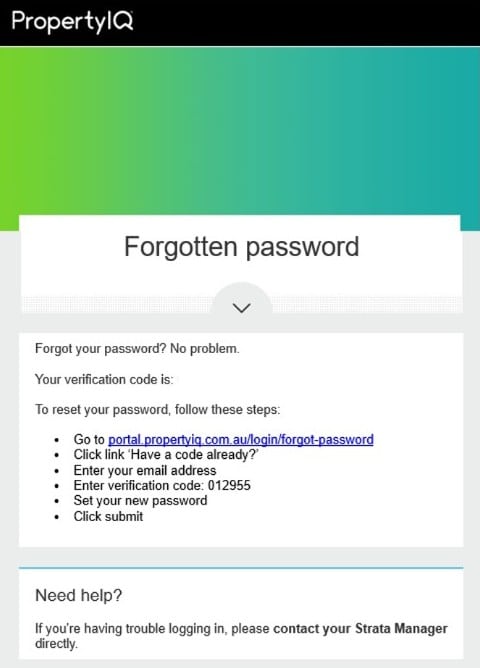
- You should shortly receive an email titled “Forgotten password”, containing a verification code needed to complete this form (as displayed below).Example of Email:

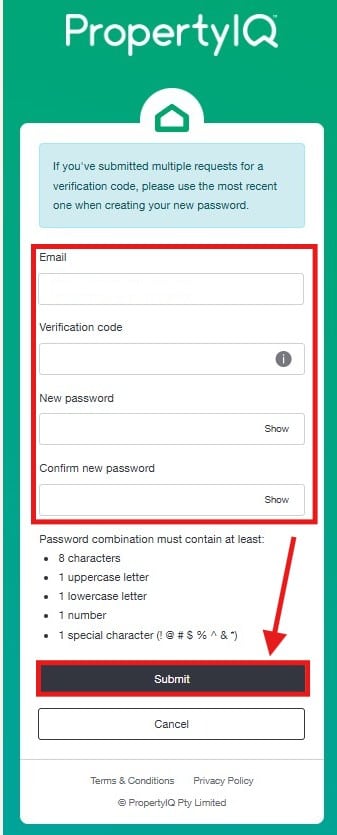
If you remain on the same webpage, you will see the below fields for completion:

- Enter the necessary details and create your new password.
- If you instead click the website link in the email you received, it will take you to the page shown below. From there, click Have a code already? and complete the required information.


Important: The login attempt must be made within 60 minutes of receiving the verification code, as it expires after that time.
Note: If you leave the website, you can reopen the Portal website and select Forgot password. Then, choose Have a code already? and complete the required information.
Note: If you have requested multiple verification codes, be sure to use the most recent one. If you still haven't received the email within 24-hours, please contact our office for assistance. Be sure to check your junk/spam folders in the first instance.
Note: If you haven't registered for the Portal, you will receive an invitation to activate your account instead. In this case, please refer to the "How to Register" tab above.
Reset Password
Steps:
- Go to the PropertyIQ Portal website: https://portal.propertyiq.com.au/login.
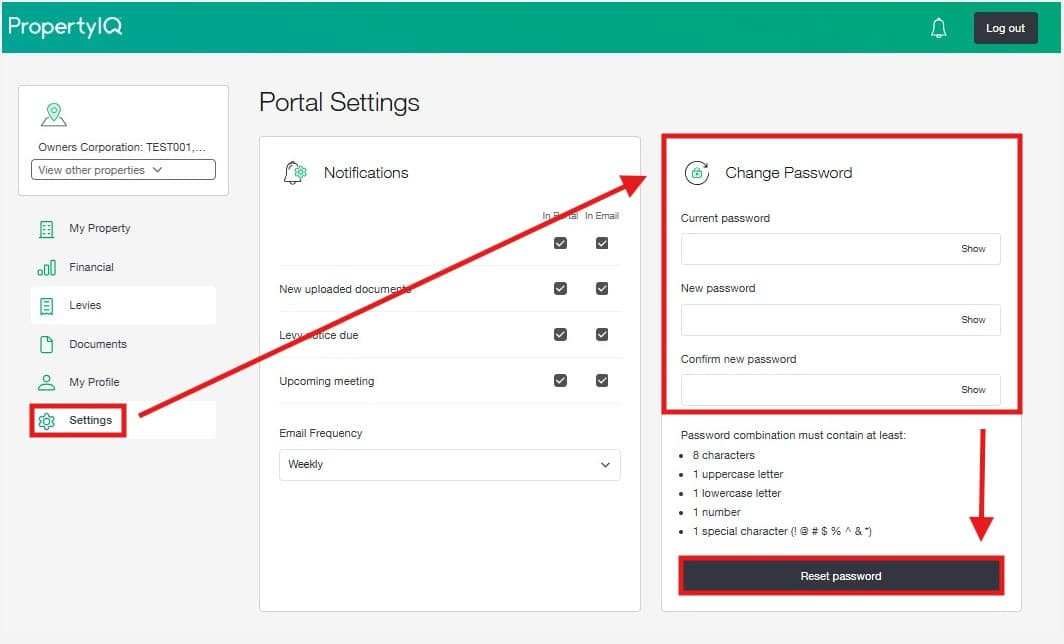
- After logging in, navigate to the left-hand side panel and select Settings.
- You can change your password and modify your notification settings here.

Navigating
Home Screen
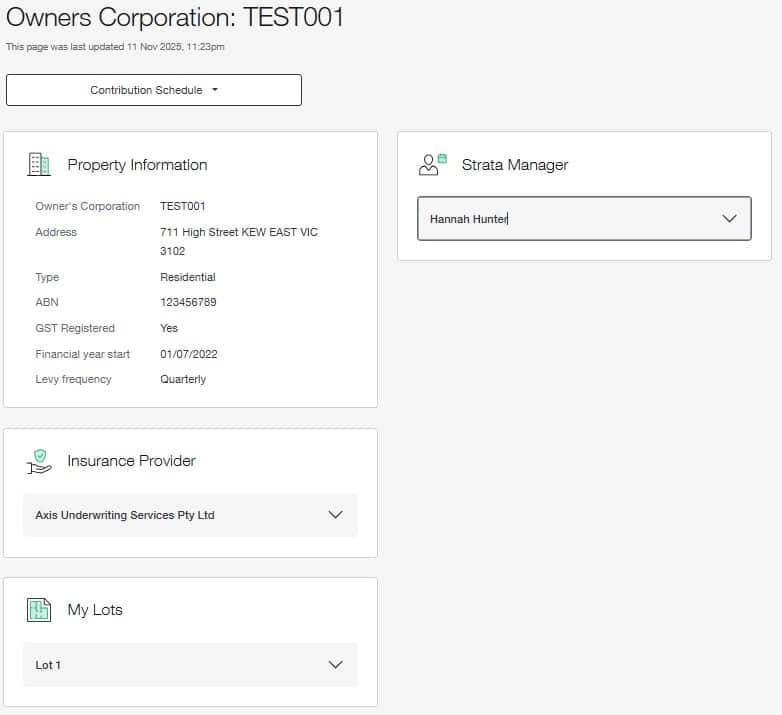
The home screen features an option panel on the left side, providing access to available pages, along with general property information, including a list of all Committee Members, an overview of the current insurance policy, and details about your lot. If you own properties in multiple buildings, you can switch between them using the "View other properties" drop-down menu on the left, as shown below.
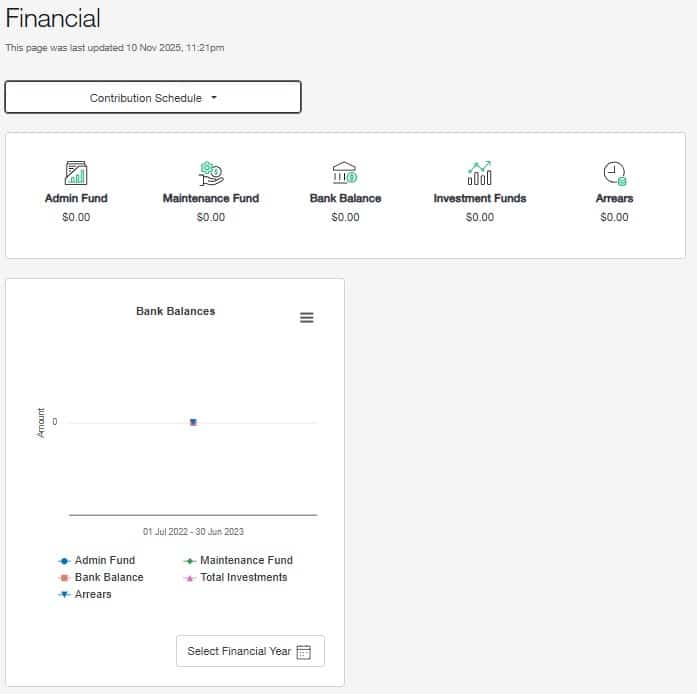
Financial
The Financial page offers an overview of the Owners Corporation financial status.
Levies
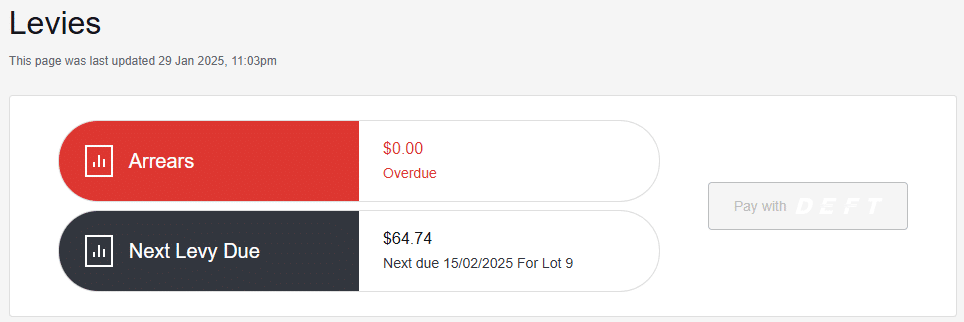
The upper section of the screen displays your current arrears and the due date for the next levy. Beside it, you'll find a button to make your levy payment, which will redirect you to the DEFT website.
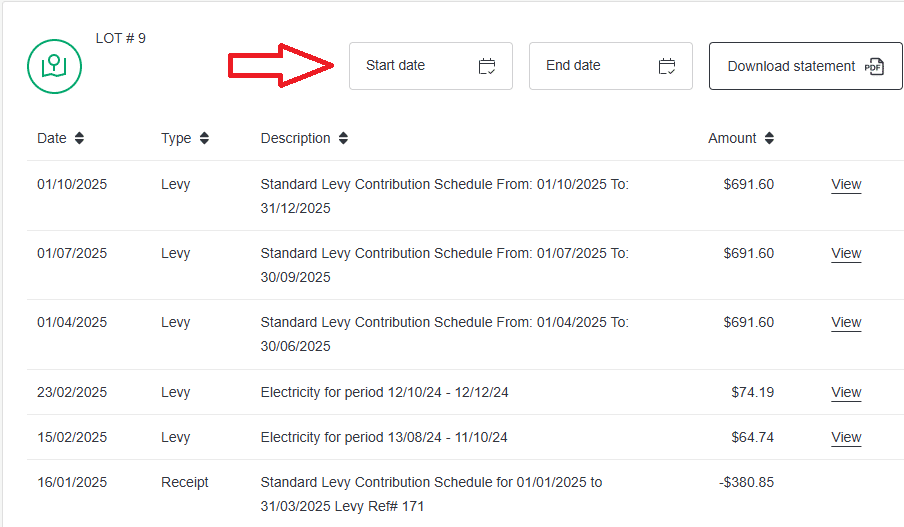
The lower part of the screen will display all the lots you own in this building, along with a summary of your levy notices and receipts. You also have the option to download a statement by selecting your desired start and end dates.
The statement will be downloaded as a document in your browser. If you don’t see the download or can’t find the document in your downloads folder, your browser may be blocking pop-ups. For troubleshooting steps, refer to the "Troubleshooting" tab below.
Documents
Here, you can access various Owners Corporation & Lot documents. Use the search bar to find specific documents, and download them by clicking the download icon shown below.
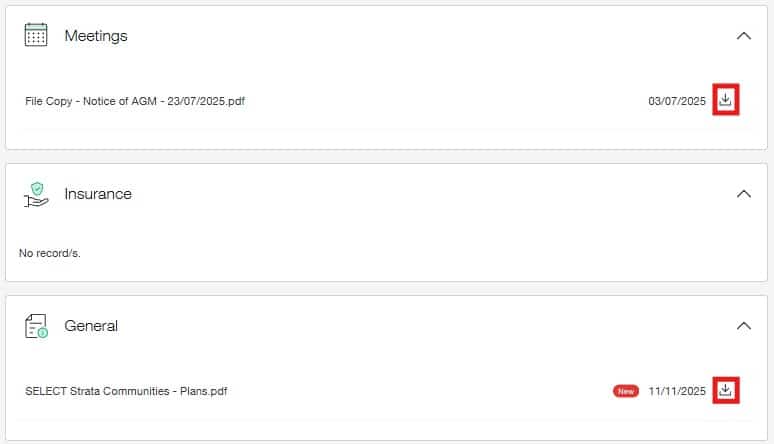
If you can't find the document you're looking for, it may not be available on the portal. For assistance, please contact our office.
The document(s) will be downloaded as a document in your browser. If you don’t see the download or can’t find the document in your downloads folder, your browser may be blocking pop-ups. For troubleshooting steps, refer to the "Troubleshooting" tab below.
My Profile
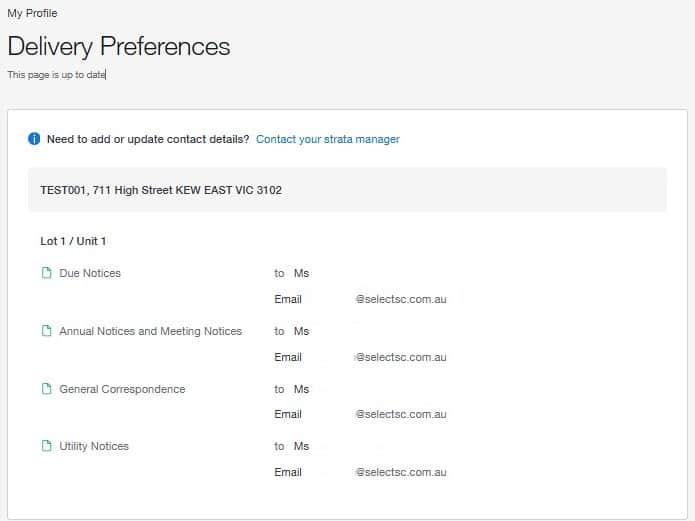
You can view your delivery preferences here. If you wish to make any updates, please complete the following Contact Details Update Form found here.
Settings
You can change your password and modify your notification settings here.

More
FAQS
What devices work with the Portal?
The Portal is optimised for use on computers, mobiles, and tablets. For the easiest experience when downloading documents, we recommend using a computer.
If you use an Apple device and experience issues, please refer to the Troubleshooting section below.
Is there a mobile app for the Portal?
No, there is currently no mobile app. Access is available only through the Portal webpage.
How does the information in the Portal remain up to date?
The Portal synchronises with SELECT’s PropertyIQ data overnight. This means the information you see reflects the status as at the end of the previous business day.
Can an owner access properties managed by different strata companies (other than SELECT)?
Yes. If you own properties managed by other companies that also use PropertyIQ, you can view them in the same account—provided all properties are registered under the same email address.
Please note: the information and features available will vary depending on each strata company’s Portal setup and access rules.
If a Lot has multiple owners with different email addresses, can each owner have separate Portal access?
No. At this stage, Portal access is limited to a single Lot owner’s email address.
Once an owner sells a property, will they still have Portal access?
No. Once SELECT processes the change of ownership in PropertyIQ, access to that property will be automatically removed during the next sync.
If you still own other properties, your Portal account remains active—you’ll simply only see the properties still registered to you.
Why isn’t a document showing in the Portal?
If a document you’re expecting does not appear in the Portal, please contact our office and we’ll assist you.
Ready to change?
Thank you for thinking of us.
Whatever your Owners Corporation needs are, the team at SELECT have got you covered. Get in touch to see how we can help you.
Ready to change?
Thank you for choosing SELECT. For an individually tailored proposal online, simply click on the button below.
Provide Feedback
Please click on the button below and a member from our team will be in touch with you soon.

SELECT the best
SELECT provides you with a streamlined and simple transition pathway when the time comes to change your Owners Corporation manager and make the switch to SELECT.


© SELECT Strata Communities 2026
Copyright 2026